This short tutorial shows how to find and save a copy of your practice’s previous AAHA Accreditation Evaluation Report and Summary Letter from the AAHA dashboard. Only staff members with Admin Access (usually the Medical Director and Practice Manager) have the Admin Access necessary for this task.
Step 1 — Log in to AAHA.org & Open Practice Dashboard
- Go to AAHA.org and click Log In.
- Enter your individual email and password and sign in
- Click the Practice Dashboard link to open the practice record.
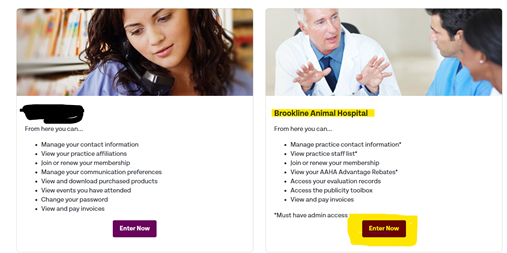
Step 3 — Navigate to Evaluations
- On the left-hand menu of the Practice Dashboard, click Evaluations.

Step 4 — Open Past Evaluations
- Under Past Evaluations, click the evaluation entry for the date you want to view. This will open the detailed evaluation record.

Please note that this page also contains email links (green highlight) so you may contact your accreditation support team directly.
Step 5 — View Evaluation Recommendations / Summary Letter
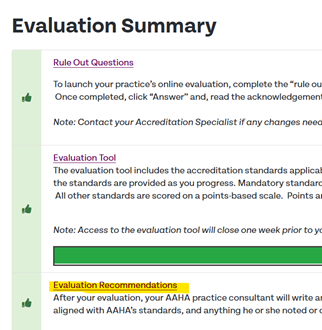
- Within the evaluation record, click Evaluation Recommendations (or the similarly labeled link) to open the evaluation summary letter and recommendations.
- The report will be displayed on the page; review the content.
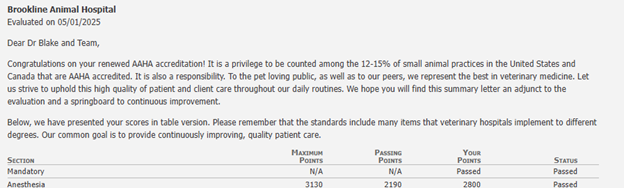
Step 6 — Save or Print the Report (save as PDF)
- Use your browser’s print function to save the page as a PDF for your records:
- Press Ctrl + P (Windows) or ⌘ + P (Mac).
- In the Print dialog choose Save as PDF (or Print to PDF) as the destination.
- Click Save and choose a secure location on your computer.
Note: There is no dedicated “download” button; printing to PDF is the easiest way to create a local copy.